

Had this the other day, after a feature update on a Server 2016:
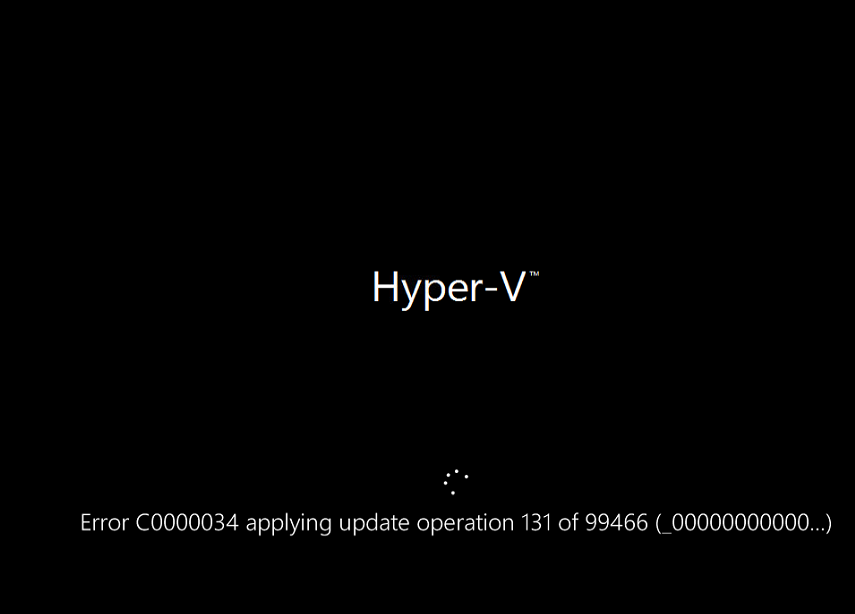
Tried a lot, but nothing helped, luckily IBM posted this:
Troubleshooting
Problem
This error mainly occurs when users install a Feature update to Windows or server patching. Most of the time, the updates are downloaded, installed successfully, and reboot normally to finalize the installation. In rare instances, during the reboot process you will be presented with a black screen and an error showing:
Fatal error C0000034 applying update operation xx of xxxxx(00000…):”]
Symptom
During the reboot process of installing Windows updates or Features, you will be presented with a black screen and an error like the one below.
Cause
- Windows Update files could potentially be corrupted when downloading from the internet.
- Peripherals that are connected to the Windows computer interrupt the update process.
- Unexpected reboots caused by cycling power or sudden loss of power during the update process.
- Moving guest systems from one host to another while installing Windows updates.
Environment
All versions of Windows Operating System.
Diagnosing The Problem
During the reboot process you will be presented with a black screen and an error showing:
Fatal error C0000034 applying update operation xx of xxxxx(00000…):”]
There are several methods of resolving this issue by deleting the pending.xml file on the system either by manual deletion or by running a script. These are not advisable as this may lead to instability with Windows updates in the future. One example is:
# In WinRE Command Prompt
cd /d C:\Windows\WinSxS\PendingDeletes
del *.* /f /q
cd /d C:\Windows\servicing\Version
del Pending.xml /f /q
Resolving The Problem
- Initiate Startup Repair
o Restart your computer and repeatedly reboot during startup (3-4 times quickly) to access the Windows Recovery Environment.
o When an error is detected, select Launch Startup Repair.
o Note: If Startup Repair is not available, boot from your Windows installation disc and proceed.
- Access Command Prompt
o In Startup Repair, click Cancel when prompted.
o In the dialog box, select View advanced options for recovery and support.
o Click Command Prompt at the bottom.
- Open Notepad via Command Prompt
o In Command Prompt, type notepad.exe and press Enter to launch Notepad.
- Locate and Edit the Pending.xml File
o In Notepad, go to File > Open.
o Change the file type from .txt to All Files.
o Navigate to the drive labeled “OS” (this may not be the C: drive).
o Go to OS drive\Windows\WinSxS.
o Locate the pending.xml file, open it, and save a backup as pending1.txt in the same folder for safety.
o Open the original pending.xml (note: it may take time to load due to its size).
o Enable Word Wrap from the View tab for easier editing.
o Use Edit > Find (or press Ctrl + F) and search for 0000000000000000.cdf-ms.
o Delete the following lines:
<Checkpoint/>
<DeleteFile path=”SystemRootWinSxSFileMaps_0000000000000000.cdf-ms”/>
<MoveFile source=”SystemRootWinSxSTempPendingRenamese<<GUID>>._0000000000000000.cdf-ms” destination=”SystemRootWinSxSFileMa_0000000000000000.cdf-ms”/>
Save the file as pending.xml in the Windows/WinSxS folder and close Notepad.
- Restart and Test
o Close Command Prompt and restart your computer.
o The system will attempt to install updates, fail, and revert to the previous state.
o Verify if the system functions correctly after the restart.
Source: Fatal error C0000034 applying update operation xx of xxxxx after installing Windows updates.
